
- Log into your https://portal.plushoster.com/login.
- Click on My cPanel and the domain name link (if you have more than one domain).
- From the Domains section, click on Addon Domains.
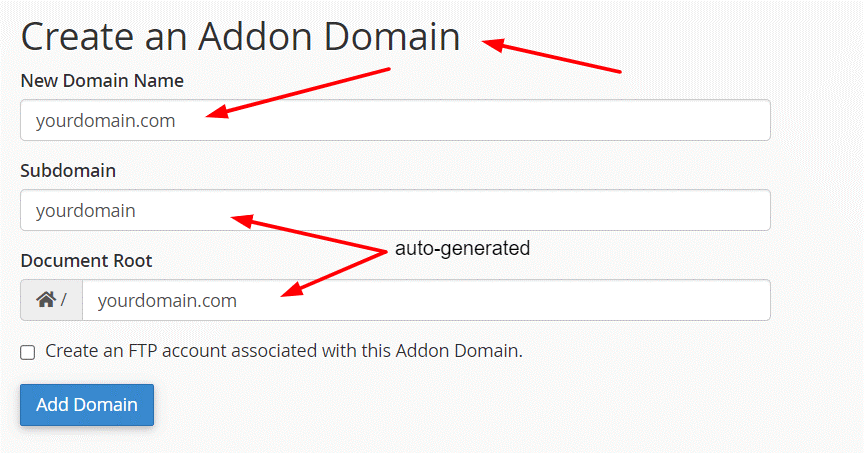
- Enter the domain name you would like to add – you don’t need to enter “www” before the domain.
- The Subdomain and Document Root fields will be auto-generated. The default auto-generated values are recommended.
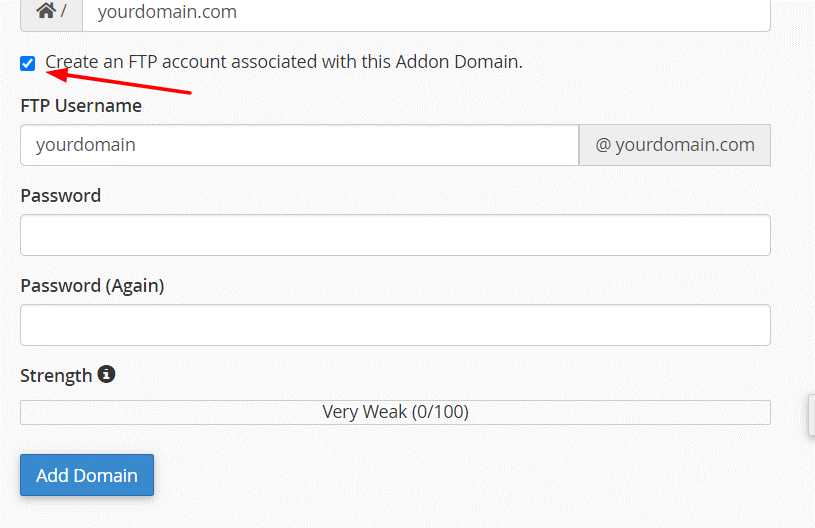
- (Optional – if you don’t need an FTP account, skip to step 7) To create an FTP account associated with the add-on domain, simply click the checkbox next to that option.
(i)Enter a strong password for the FTP account.
(ii)Enter a username that you’ll recognize later as associated with this domain.
7. Click Add Domain.
New email accounts for the add-on domain can also be set up under the mail settings in cPanel. From the Mail section, click on Email Accounts and set up your email address. You will be able to choose the add-on domain from a pull-down menu on the setup screen.
